File Too Large for the Destination File System? Check the USB Format
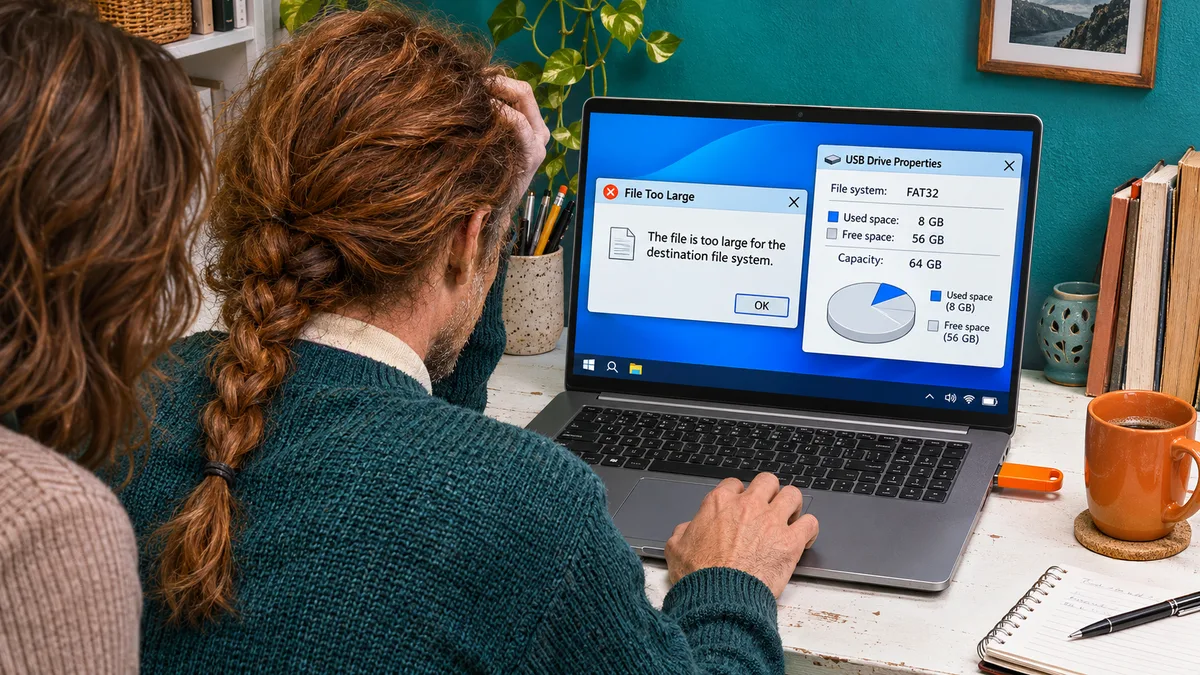
“File too large for the destination file system” can appear even when a USB drive has plenty of free space. Check the format before buying a larger drive.
In this article
- Why can a file be too large when the drive has free space?
- Check the destination and the file before changing anything
- Choose a compatible destination for large files
- Back up existing files before formatting the USB drive
- How to reformat after the backup and compatibility checks
- Test the copy before deleting the original
- FAQ
“File too large for the destination file system” often means a USB drive is formatted as FAT32 and the individual file exceeds its roughly 4 GB limit. The drive can have plenty of unused capacity and still reject that one file. Check both the file size and the destination’s file system before deleting files, buying another drive or reformatting.
Microsoft’s file-system comparison lists FAT32’s maximum file size as 4 GiB, with much larger limits for exFAT and NTFS. That is a per-file limit, separate from the amount of free space. The right fix also depends on which computer, TV, camera or other device must read the drive afterward.
Why can a file be too large when the drive has free space?
A file system can impose an individual-file limit even when the drive’s total capacity is larger. That explains a common “file too large for the destination file system” message during a USB copy. Free space and the maximum permitted size of one file answer different questions.
For example, imagine a FAT32 USB drive with 32 GB free and a 6 GB video you want to copy. There is enough unused capacity in total, but that single file is too large for FAT32. Deleting another 10 GB from the drive would not change its per-file limit.
By contrast, many small files whose combined size exceeds 4 GB can fit if each individual file is within the limit and the drive has enough usable space. Check the largest file in a folder rather than assuming the folder’s total size is the only number that matters. A copy can fail on one large item while smaller items transfer successfully.
Check the destination and the file before changing anything
Confirm the file’s size and the destination drive’s format first. In Windows, open File Explorer, identify the USB drive under This PC and inspect its Properties for the file-system name and free space. Check the source file’s Properties separately to see its size.
Make sure you are inspecting the drive you are actually copying to. A label such as “Backup” does not establish whether a drive uses FAT32, exFAT or NTFS. Note the drive letter, label and capacity together so a later change is applied to the intended removable drive.
What you find | What it suggests | Useful next check |
|---|---|---|
FAT32 and a file larger than about 4 GB | Single-file limit is a likely cause | Check a compatible larger-file format or another destination |
File size exceeds actual free space | Capacity is also insufficient | Preserve needed files and choose adequate storage |
exFAT or NTFS, with ample free space | FAT32’s limit does not explain this case | Confirm exact error, access conditions and drive health |
Write-protected or access-denied message | A different problem | Use the guidance for that exact message |
This guide addresses the file-size error. It does not establish that every failed USB copy has the same cause. If the format and file size do not fit the explanation, keep the exact error wording instead of reformatting as a universal repair.
Choose a compatible destination for large files
A destination that supports the individual file size can avoid the FAT32 restriction. For a “file too large for the destination file system” problem, using a suitable drive you already have may be simpler than changing the original drive’s format. Check available capacity as well as format.
For transfers between current Windows and Mac computers, exFAT is a common option. Apple identifies MS-DOS FAT and exFAT as Windows-compatible formats. Compatibility with computers does not guarantee compatibility with every TV, car stereo, camera or specialized device.
Before changing a USB drive used by another device, read that device’s storage requirements. A TV that expects FAT32 may stop recognizing the drive after an otherwise successful exFAT format. If you need both uses, a separate compatible drive may avoid repeatedly changing formats and restoring data.
NTFS may be appropriate for a Windows-centered workflow, but check the actual read-and-write support of every device involved. Do not choose it merely because its maximum file size is larger. Kingston’s file-system guide discusses why the intended equipment matters.
Back up existing files before formatting the USB drive
Formatting changes the drive’s file system and erases its contents, so preserve everything needed before proceeding. A “file too large for the destination file system” error is not a reason to skip this step. Apple explicitly states that erasing a storage device deletes everything on it and directs users to copy wanted files elsewhere first.
Copy the existing USB files to another storage location, then open representative files and check that the expected folders and important items are present. Do not treat a partially completed copy as a verified backup. Keep the original large file on its source storage until the new destination copy has been tested.
If a missing file would be difficult to replace, resolve the backup before starting the format. A drive that already contains the only copy of something important needs particular care. Formatting is a storage change, not a way to inspect which files can safely be lost.
How to reformat after the backup and compatibility checks
Reformat only after confirming that the data is preserved and the new file system suits the receiving devices. On Windows 11, Kingston’s formatting instructions use File Explorer, This PC, the removable drive’s Format command and the File system menu. Select the appropriate format, check the target drive again and read the erasure confirmation before starting.
For a Mac, open Disk Utility and identify the external USB device. Use Apple’s erase-and-reformat instructions, choosing the appropriate format and scheme for the intended use. Do not select the Mac’s internal startup storage while trying to prepare a removable USB drive.
The relevant controls can vary by operating-system version and device layout. Use the official instructions for that setup rather than changing unrelated partitions or security settings. Once the format completes, verify the resulting file system before restoring the backed-up files.
If you do not want to erase the original drive, return to the alternative of a different compatible destination. The aim is to solve the file-size problem while preserving the data, not to make formatting an obligatory first step.
Test the copy before deleting the original
After resolving the file-too-large problem, test the copied file on the equipment that will use it. A successful transfer dialog confirms less than a successful open or playback test. Check the complete file rather than only whether its name appears on the USB drive.
Keep the original until the destination copy works and any necessary backup is retained. If a large video copies but the TV cannot play it, the video’s format or the device’s playback support may be a separate issue. That is different from the file system refusing to store it in the first place.
Compression is not a guaranteed workaround: a large compressed video may shrink very little. Splitting a file also changes the workflow because the receiving side may need to reconstruct it; split archive parts are not automatically separate playable video clips. Use those approaches only when they suit the actual task and receiving equipment.
FAQ
These answers address “file too large for the destination file system” when copying to a USB drive.
Will buying a larger FAT32 drive fix the individual-file limit?
Not by capacity alone. A larger FAT32 drive can still reject the same oversized individual file. Check the format and receiving-device compatibility before purchasing storage.
Does exFAT work with every device?
No. It is useful across supported Windows and Mac setups, but individual appliances and specialized devices can have different requirements. Check their manuals before reformatting.
What if the USB drive already uses exFAT?
FAT32’s single-file limit does not explain that situation. Recheck the actual file size, free space, destination and error wording, then use support guidance for the confirmed problem. Do not erase a drive solely because another person solved a “file too large for the destination file system” error that way.
Spotted an error? Tell our editors. Read our corrections policy.