iPhone Storage Full but iCloud Has Space? Check the Right Storage
If your iPhone storage is full but iCloud has space, another cloud upgrade may not solve the warning. Find the local files using the phone’s capacity first.
In this article
- Why can iPhone storage be full when iCloud has space?
- Check both storage meters before changing anything
- If Photos is large, check optimization and syncing
- Offload apps or remove downloads before deleting useful data
- Avoid deletions that also remove cloud content
- Recheck local storage and test the task that failed
- FAQ
If your iPhone storage is full but iCloud has space, the phone’s built-in storage and your cloud allowance are being measured separately. Buying more iCloud storage does not increase the physical capacity of the iPhone. Check Settings → General → iPhone Storage to find the local category using the space, then decide whether to optimize photos, remove downloads or manage apps.
Do not begin by deleting photos or backups simply because a storage warning appears. Some deletions sync across devices, while deleting a cloud backup can remove a recovery copy without solving the local-storage problem. The safest next action depends on which storage is full and whether the material exists elsewhere. Apple explains device storage versus iCloud storage.
Why can iPhone storage be full when iCloud has space?
An iPhone can be full while iCloud has space because apps, downloads and other local content still occupy the device’s separate capacity. A cloud plan provides remote storage for supported services; it is not a replacement storage chip for the phone. Some content can be optimized or accessed through the cloud, but not every local item disappears automatically.
Consider a hypothetical 64 GB iPhone paired with a 200 GB iCloud plan. The phone can run low on its own capacity while much of that cloud allowance is unused. The two numbers are not added into a single 264 GB device-storage pool.
Start by identifying the exact warning. A message about iPhone Storage points to the device; a message about iCloud storage points to the cloud account. Screenshot the wording for your own reference if you are comparing the problem with a support page.
Check both storage meters before changing anything
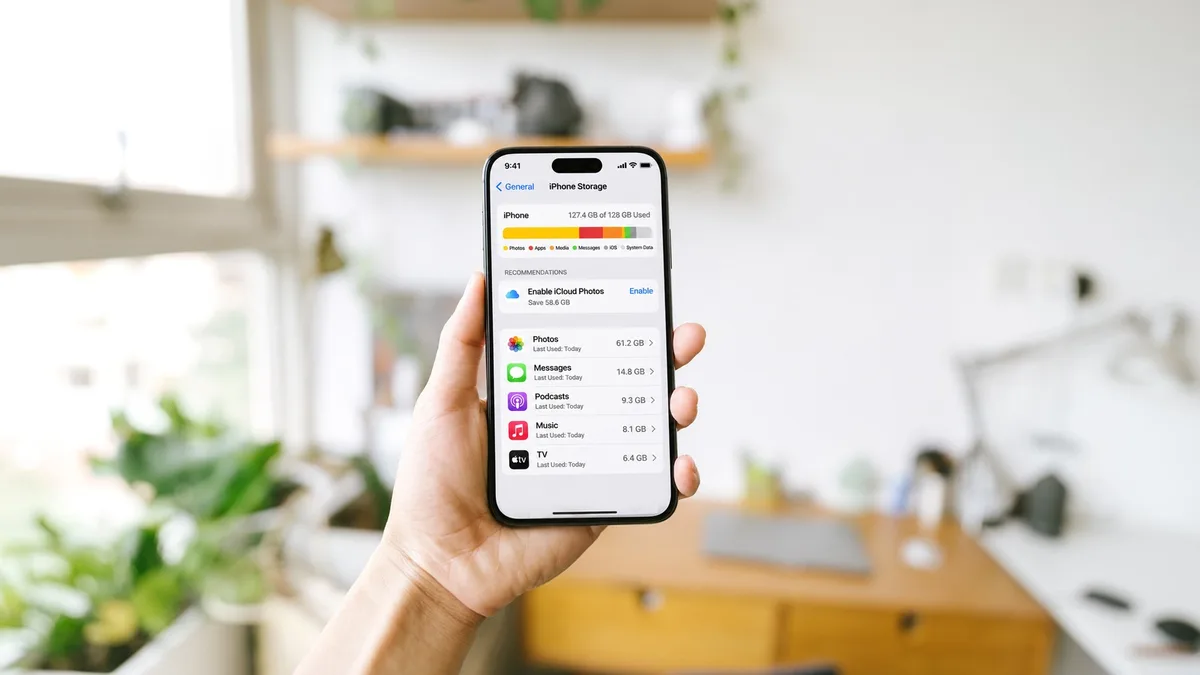
Compare the local and cloud storage screens when your iPhone is full but iCloud has space. In Settings, open General, then iPhone Storage for device usage. Separately, tap your name in Settings and open iCloud to review cloud usage and its storage-management options. Apple lists both checks.
Let the device-storage screen finish calculating, then note the largest categories and apps. The useful question is which local category could release enough space, not how much cloud space you bought. Keep that observation separate from a guess based on your photo count.
What is taking local space? | What to inspect first | What not to assume |
|---|---|---|
Photos and videos | iCloud Photos status and optimization setting | More cloud storage immediately removes all local originals |
A large app | The app’s own size and its documents or downloaded content | Removing the app is the only way to remove a download |
Downloaded media | Offline movies, podcasts or music inside the relevant app | Streaming and keeping a permanent offline copy use the same local space |
Messages and attachments | Large conversations and files you still need | Deleting synced material affects only this phone |
System or other categories | Apple’s storage recommendations and current device details | Every reported byte can be manually removed |
The Apple device-storage guide describes categories, recommendations, offloading and deletion. Its explanations are more useful than a generic cleaner app promising to erase everything labeled “Other.”
If Photos is large, check optimization and syncing
When Photos is a major cause of full iPhone storage, iCloud Photos with optimized device storage can reduce the local space used while retaining full-resolution items in iCloud. It does not mean the phone will hold no photo data at all. Optimization uses smaller local versions when appropriate, and original files may need to download when you access them.
Open Settings, tap your name, then iCloud and Photos. Check that the intended photo library is syncing and look for Optimize iPhone Storage. On iOS 27 or later, Apple’s current instructions include an iPhone Storage menu within the photo settings. Earlier versions can arrange these controls differently. Apple’s photo-storage instructions show the supported path.
Do not select Download and Keep Originals when your goal is to reduce local photo use without understanding its effect. It requests original files on the device, which can require substantial local space. Also check whether uploading has actually completed rather than assuming an upgrade finished the process.
There is no reliable universal promise that a large library will optimize within a few minutes. Use the photo library’s status and Apple’s current guidance to investigate a stalled process. Keep access to reliable internet and power as appropriate, and avoid repeatedly changing sync settings while trying to diagnose it.
Offload apps or remove downloads before deleting useful data
If your iPhone is full but iCloud has space, removing local content you no longer need can help without changing the cloud plan. Start with large downloads you recognize and can obtain again. Use the relevant app’s download-management controls and read whether an action removes an offline copy, the entire item or associated data.
Apple distinguishes two device-storage actions: Offload App removes the app while retaining its documents and data, while Delete App removes the app and its related data. Depending on the app, there may also be a way to remove some documents or data separately. See Apple’s storage-management explanation.
For a hypothetical app using 800 MB for its program and 6 GB for documents and downloads, offloading the program does not imply that all 6.8 GB becomes available. Review the breakdown before choosing. Removing a large offline video within the app may address the actual space problem more directly.
Before deleting an app with important records, authentication credentials or unfinished work, confirm how those items are saved and how you would regain access. Do not assume every app’s data is safely recoverable just because an iCloud account is signed in. An app’s own sync or export process can matter.
Avoid deletions that also remove cloud content
Deleting synced photos or files can remove them from iCloud and other devices, so it is not the same as simply asking the iPhone to keep a smaller local copy. Apple says that deleting an item from iCloud Photos on one device also deletes it on other devices signed in with the same Apple Account. Read Apple’s iCloud-storage guidance before deleting.
Preserve an independent copy of anything important before making irreversible changes. Apple provides instructions for archiving or copying iCloud information, including files, photos and videos. Check that the copied material opens successfully rather than treating a transfer dialog as proof that every original is preserved.
Deleting an iCloud device backup is also a different action from freeing local iPhone storage. Apple notes that deleting a backup turns off iCloud Backup for that device until you enable it again. Removing a backup should not be the first response to a local-capacity warning when your cloud allowance already has room.
If you prefer to keep originals outside the phone, Apple also explains transferring photos to a computer. Review the instructions for your setup and preserve the copies before deciding what to remove from the phone or synced library.
Recheck local storage and test the task that failed
After managing the largest relevant category, return to iPhone Storage and check whether usable local space increased. Then retry the task that prompted the warning, such as recording a video, downloading a needed app or installing an update. Extra unused iCloud capacity alone is not the success measure for a local-storage problem.
Keep a note of the free local space, largest category and actions taken. If the warning persists, those details help Apple Support distinguish an app-specific issue from a broader storage-management problem. Use the device’s storage recommendations before considering a reset that would create additional recovery work.
Do not expect an exact zero for system data or try to remove files you cannot identify. Apple explains that the operating system and other categories include necessary content and that some cached items are managed by the device. A smaller category total is useful only if the phone remains functional and the files you need are preserved.
FAQ
These answers address full iPhone storage when iCloud still has space.
Will upgrading from 200 GB to 2 TB fix a full iPhone?
Not automatically. An upgrade expands the cloud allowance, not the phone’s physical capacity. If iCloud already has enough room, inspect device usage and the relevant sync or optimization settings before buying more.
Can you delete iCloud photos and keep them on the iPhone?
Do not assume that result while iCloud Photos is syncing. Deletions can propagate across the library. Use Apple’s guidance to preserve independent copies and understand your settings before removing important images.
Why is there still photo storage after optimization?
Optimized storage can retain smaller local versions and other photo-related data; it does not make Photos take no space. Check the current settings and sync status, then compare actual local usage over time. When iPhone storage is full but iCloud has space, managing the device’s real contents is the step that addresses the warning.
Spotted an error? Tell our editors. Read our corrections policy.